
The Amazon Fire TV Stick is by far the most popular streaming device in North America. With its compact HDMI dongle form factor, responsive remote, and robust Android-based Fire OS architecture, it is the ideal hardware platform for high-bitrate IPTV streaming. In this comprehensive tutorial, we guide you through the complete installation process from unboxing to streaming live sports in 4K.
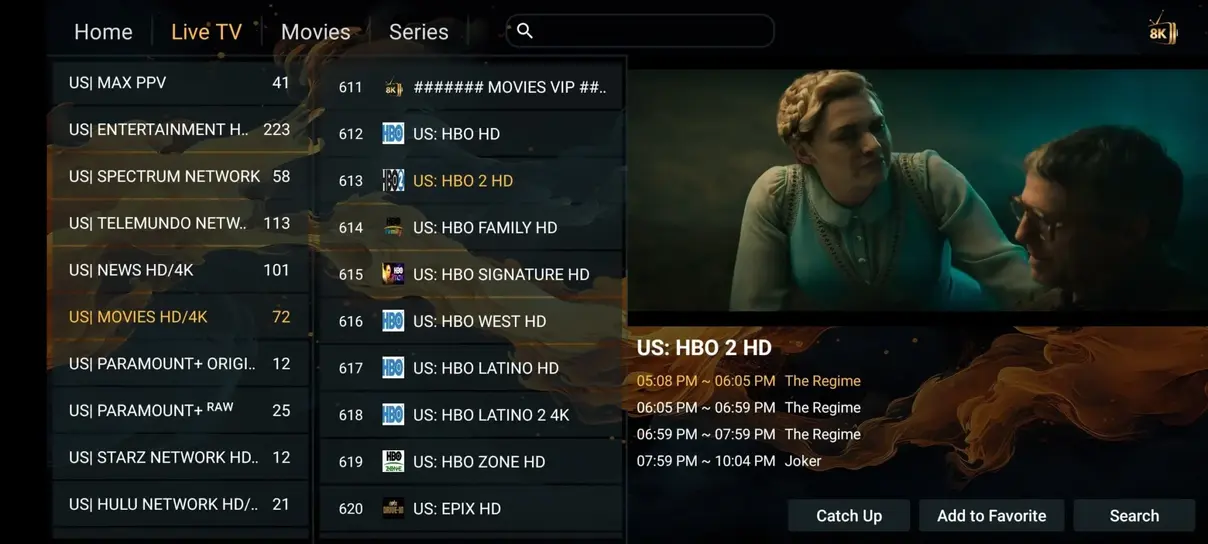
Configuring IPTV on Amazon Fire TV Stick using the Downloader utility.
Phase 1: Preparing Your Firestick for Sideloading
Because top IPTV players like TiviMate or customized versions of IPTV Smarters Pro are not hosted directly on the Amazon Appstore, you must enable sideloading permissions. This takes less than 60 seconds:
- From your Firestick home screen, click the Settings gear icon on the far right.
- Scroll down and select My Fire TV.
- Click Developer Options. (Note: If Developer Options is hidden on newer Fire OS versions, click “About” and click on your Fire TV Stick name 7 times rapidly until a toast notification appears stating “You are now a developer!”).
- Turn ON both ADB Debugging and Apps from Unknown Sources.
Phase 2: Installing the Downloader Utility
The free Downloader app by AFTVnews is the universal tool used to download APK installation files onto Fire TV devices:
- From the Firestick home screen, click Find → Search.
- Type “Downloader” using your remote control and click on the orange Downloader icon in the search results.
- Click Get / Download to install the application.
- Open Downloader and click Allow when prompted for storage permissions.
Amazon Fire TV Stick 4K Max hardware benchmarked in our testing lab.
Phase 3: Sideloading & Configuring Your IPTV Player
Now that Downloader is ready, you can install your preferred player. We recommend TiviMate or IPTV Smarters Pro:
- Inside Downloader's URL box, enter the official download URL or quick code for your chosen app.
- Click Go. The APK package will download immediately.
- Click Install when the installer pop-up appears, then click Done.
- Click Delete twice to remove the temporary APK file and preserve precious internal Firestick storage.
- Launch the newly installed player from your “Your Apps & Channels” screen.
- Select Login with Xtream Codes API and enter your Pro IPTV credentials from your order confirmation message.
For more specific device setup nuances, review our detailed Installation Guide.
Detailed Troubleshooting for Firestick Sideloading Errors
If you encounter unexpected errors during the Firestick installation workflow, here is how our engineering team recommends resolving them:
- “App Not Installed” Error: This typically occurs if your Firestick has less than 500MB of free internal storage. Go to Settings → Applications → Manage Installed Applications, and uninstall unused games or screensavers to free up flash memory.
- “URL Cannot Be Opened” in Downloader: Double-check that your Firestick is connected to the internet. Sometimes corporate or public guest Wi-Fi networks block APK downloads; try temporarily connecting to a mobile hotspot or activating a VPN.
- Playlist Fails to Download: Ensure you selected “Login with Xtream Codes API” rather than typing a lengthy M3U URL with the remote control. Xtream Codes API requires only your username, password, and short server address.
Optimizing Firestick Performance for 60fps Sports
To ensure flawless 4K sports streaming without micro-stutters on your Firestick:
- Clear Cache Weekly: Go to Settings → Applications → Manage Installed Applications → select your player → Clear Cache. This flushes temporary thumbnail fragments without deleting your login.
- Use the HDMI Extender: Always use the flexible HDMI extender cable included in your Firestick box. It pushes the device away from the metal back of your TV, improving Wi-Fi antenna reception by up to 40%.
- Disable Autoplay Video and Audio: In Firestick Settings → Preferences → Featured Content, turn off both “Allow Video Autoplay” and “Allow Audio Autoplay”. This frees up background CPU cycles for your IPTV stream.
- Choose the Right Duration Plan: Check our subscription pricing packages to select a plan with +1 month free on annual orders.
Advanced Firestick Cache Cleaning & Memory Management
The Amazon Firestick is an exceptionally capable device, but its compact form factor means it has limited internal RAM (1.5GB to 2GB) and flash storage (8GB to 16GB). To keep your Firestick operating with lightning responsiveness over months of heavy streaming:
1. Managing the Internal App Cache
Every time you browse through our 142,000+ VOD movie posters and live channel logos, your IPTV player stores thumbnail images in its local cache. Over several weeks, this cache can grow to several gigabytes, leaving your Firestick with critically low storage. Once a week, navigate to Settings → Applications → Manage Installed Applications, select your player, and click Clear Cache. (Important: Never click “Clear Data” unless you wish to reset the application and re-enter your login credentials!).
2. Closing Background Rogue Applications
Fire OS does not automatically close applications when you press the Home button on your remote; it pauses them in system RAM. Over time, apps like Netflix, Prime Video, and YouTube accumulate in background memory, competing with your IPTV player for CPU resources. We strongly recommend installing a free utility like Background Apps and Processes List from the Amazon Appstore to force-close idle background apps before launching your IPTV player for live sports.
Firestick Network Settings: Optimal Wi-Fi Configurations
If your television is located far from your primary internet router, follow these steps to maximize throughput to your Firestick:
- Separate 2.4GHz and 5GHz Network Names: Ensure your router broadcasts distinct SSIDs for 2.4GHz and 5GHz. Always connect your Firestick to the 5GHz network, which offers 3x to 5x higher bandwidth and lower latency.
- Change Wi-Fi Channel: Inside your router settings, manually set your 5GHz channel to 36, 40, 44, or 48. These non-DFS channels provide maximum compatibility with Amazon Fire TV hardware and suffer from zero radar-detection interference.
Advanced Firestick Cache Cleaning & Memory Management
The Amazon Firestick is an exceptionally capable device, but its compact form factor means it has limited internal RAM (1.5GB to 2GB) and flash storage (8GB to 16GB). To keep your Firestick operating with lightning responsiveness over months of heavy streaming:
1. Managing the Internal App Cache
Every time you browse through our 142,000+ VOD movie posters and live channel logos, your IPTV player stores thumbnail images in its local cache. Over several weeks, this cache can grow to several gigabytes, leaving your Firestick with critically low storage. Once a week, navigate to Settings → Applications → Manage Installed Applications, select your player, and click Clear Cache. (Important: Never click “Clear Data” unless you wish to reset the application and re-enter your login credentials!).
2. Closing Background Rogue Applications
Fire OS does not automatically close applications when you press the Home button on your remote; it pauses them in system RAM. Over time, apps like Netflix, Prime Video, and YouTube accumulate in background memory, competing with your IPTV player for CPU resources. We strongly recommend installing a free utility like Background Apps and Processes List from the Amazon Appstore to force-close idle background apps before launching your IPTV player for live sports.
Firestick Network Settings: Optimal Wi-Fi Configurations
If your television is located far from your primary internet router, follow these steps to maximize throughput to your Firestick:
- Separate 2.4GHz and 5GHz Network Names: Ensure your router broadcasts distinct SSIDs for 2.4GHz and 5GHz. Always connect your Firestick to the 5GHz network, which offers 3x to 5x higher bandwidth and lower latency.
- Change Wi-Fi Channel: Inside your router settings, manually set your 5GHz channel to 36, 40, 44, or 48. These non-DFS channels provide maximum compatibility with Amazon Fire TV hardware and suffer from zero radar-detection interference.
Get Your Pro IPTV Firestick Credentials in 5 Minutes
Order your plan today and start streaming 35,000+ live channels directly on your Fire TV device.